How to Export WhatsApp Group Members and Organize a Multi-Group Contact List
Export the groups you need, keep the downloaded file, and organize a working copy into two sheets: Memberships for each number's group relationships and Contacts for one row per phone number. This keeps the group sources available while giving you a clean contact list.
Here is how to export whatsapp group members with WAExport and organize the result in Excel, using a real multi-group export.
1. Choose your groups and export settings
Open WAExport in WhatsApp Web. The screenshot below shows Excel, All Groups, and All Members selected, with Exclude Admins switched off.
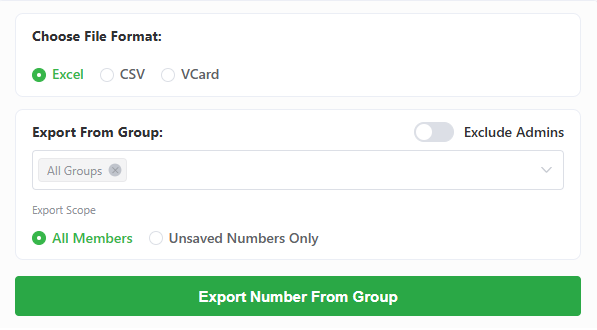
- Choose Excel to work with several sheets. Choose CSV when another system requires that format.
- Open the group selector. Keep All Groups or replace it with the groups you want to organize.
- Select All Members for a membership list. Select Unsaved Numbers Only when you only need numbers not saved as contacts.
- Leave Exclude Admins off to include administrators, or switch it on to leave them out.
- Click Export Number From Group, download the file, and keep the original unchanged.
When you export whatsapp group members for comparison between groups, use the same filters for every group. Keep a note of those settings alongside your working file.
2. Read the columns you will use
The export contains these nine columns:
| Export header | How to use it |
|---|---|
| Country Code | Calling code; do not add it again if Phone Number already includes it. |
| Country | Country label associated with the number. |
| Phone Number | Matching key for your contact list; keep it as text. |
| Public Display Name | The member's public display name. |
| Saved Name | The name saved in your contacts; it can be blank. |
| Group Name | Source group for this membership record. |
| Is My Contact | Saved-contact status for your account: True or False. |
| Is Business | Business-account status. |
| Is Blocked | Blocked status. |
For deduplication, use Phone Number, not the name. Public Display Name and Saved Name serve different purposes, and several people can share a name. The Exclude Admins switch controls the export scope; this file has no separate administrator column.
3. A real case: two groups, 185 records
The full export contains 4,327 records, 4,178 unique numbers, and 27 distinct group names. For a manageable case, take two groups: Group A has 51 numbers and Group B has 134. Two numbers appear in both groups.
The following six rows are an excerpt from the actual export, with personal details masked.
| Phone Number | Contact label | Group Name |
|---|---|---|
+*********9060 | Contact A | Group A |
+*********2013 | Contact B | Group A |
+*******6409 | Contact C | Group A |
+*********9060 | Contact A | Group B |
+*********2013 | Contact B | Group B |
+*******8411 | Contact D | Group B |
Contact A and Contact B each have two valid group relationships. The two complete groups therefore contain 185 membership records but 183 unique phone numbers. The table shows only a small excerpt, not the complete groups.
4. Keep group relationships in Memberships
Save a working copy as .xlsx, then duplicate the source sheet and name it Memberships. Filter Group Name to the two groups you want to inspect.
To create a separate two-group sheet, select the filtered table, choose Home → Find & Select → Go To Special → Visible cells only, and copy it into a new sheet. Include the header. This avoids copying hidden rows from other groups.
Select the entire two-group table. In Data → Remove Duplicates, enable the header option and check only Phone Number and Group Name. Excel compares those two fields together.
In this export, no number-and-group pair repeats. The two-group membership sheet stays at 185 rows. Keep both rows for contacts who belong to both groups.
If different groups share the same name, give their sources distinct labels before combining them. If repeated pairs contain different names or statuses, review those fields before removing rows.
5. Build Contacts with one row per number
- Copy the two-group Memberships sheet and rename the copy Contacts.
- Remove Group Name from Contacts. Keep the number, names, country fields, and status columns.
- Check repeated numbers for conflicting names or statuses and choose the information you want to retain.
- Select the full table, open Data → Remove Duplicates, and select only Phone Number.
Contacts now has 183 rows. Excel's Remove Duplicates keeps the first matching row, so arrange the preferred record first when values differ. It does not combine group names or choose the newest information for you.
To find all groups for a contact, filter that number in Memberships. Contacts answers “which numbers do I have?”; Memberships answers “which groups does each number belong to?”
6. Preserve number formatting and check the result
Keep Phone Number as text so the leading + and significant digits remain intact. For CSV in Excel, use Data → From Text/CSV → Transform Data. Remove an automatically inserted numeric type-conversion step if necessary, set Phone Number to Text, and then load the data. In the legacy import wizard, choose Text for that column before finishing.
If digits have already been lost, reimport the intact source; changing the cell format alone cannot recover them. Save the multi-sheet result as .xlsx, since CSV stores only one table.
To work with unsaved contacts, filter Is My Contact to False. A blank Saved Name can simply mean that no saved label is available. Copy only the visible filtered rows when creating a separate deliverable.
For the two-group case, check that Memberships has 185 rows and Contacts has 183. Across the complete export, the 149 extra membership records reflect numbers appearing in multiple groups. Compare results using the same group selection and filters.
Frequently asked questions
Should I delete repeated numbers from the original export?
Keep the original. Preserve valid number-and-group pairs in Memberships and remove repeated numbers only in Contacts.
Why is Saved Name blank?
That record has no saved contact label available. Use Is My Contact to filter saved or unsaved contacts rather than deleting rows with blank names.
Where can I see every group a contact belongs to?
Filter Phone Number in Memberships. That sheet preserves the separate group relationships.
Why is the contact count lower than the total group membership?
Some numbers occur in more than one group. Check the group selection, administrator setting, and saved-contact filter before comparing counts.
Create your working list
Use WAExport to export whatsapp group members, then keep Memberships and Contacts side by side. You can look up group sources without cluttering the unique-number list.
Share only the fields needed for your task and keep access limited to the people who need the file.
How to Download WhatsApp Group Numbers in 2026
Learn how to download WhatsApp group numbers from WhatsApp Web to Excel, CSV, or VCF. A practical guide for exporting group member contacts safely with WAExport.
How to Extract WhatsApp Group Numbers Without Admin Access (2026)
Can you extract phone numbers from a WhatsApp group without admin rights? Yes! Step-by-step tutorial on how non-admins can export group contacts.