New in WAExport: Download WhatsApp Status on Your Computer
Want a desktop backup of a poster you posted, a video a friend shared, or several assets you have permission to reuse? You can now save them from the Status tab in WAExport.
Our new WhatsApp Status download feature lets you filter by content type, save one status directly, or select several to download from WhatsApp Web.
Quick start: Sign in to WhatsApp Web → open WAExport → choose Status → filter and select items → click Download selected. For a single item, use the download icon on its right.
What is available in the Status tab?
The new Status tab sits beside Group, Contact and Chat. The list groups statuses by publisher, making it easier to find your own posts or a contact's content.
| Control | What it does |
|---|---|
| All / Images / Videos / Text | Show all content or filter by type. |
| Numbers beside each type | Show how many items of that type are in the current list. |
| Checkboxes on the left | Select the statuses you want to download. |
| Download icon on each row | Save that individual status. |
| Download selected | Download your selection; the number shows how many items are selected. |
| Publication and expiry details | Help you identify content and save it in time. |
Download WhatsApp Status in four steps
The numbered orange boxes mark each step in the actual extension screenshot. This example contains two image statuses, with only the item under Me selected. The bottom button therefore reads Download selected (1).
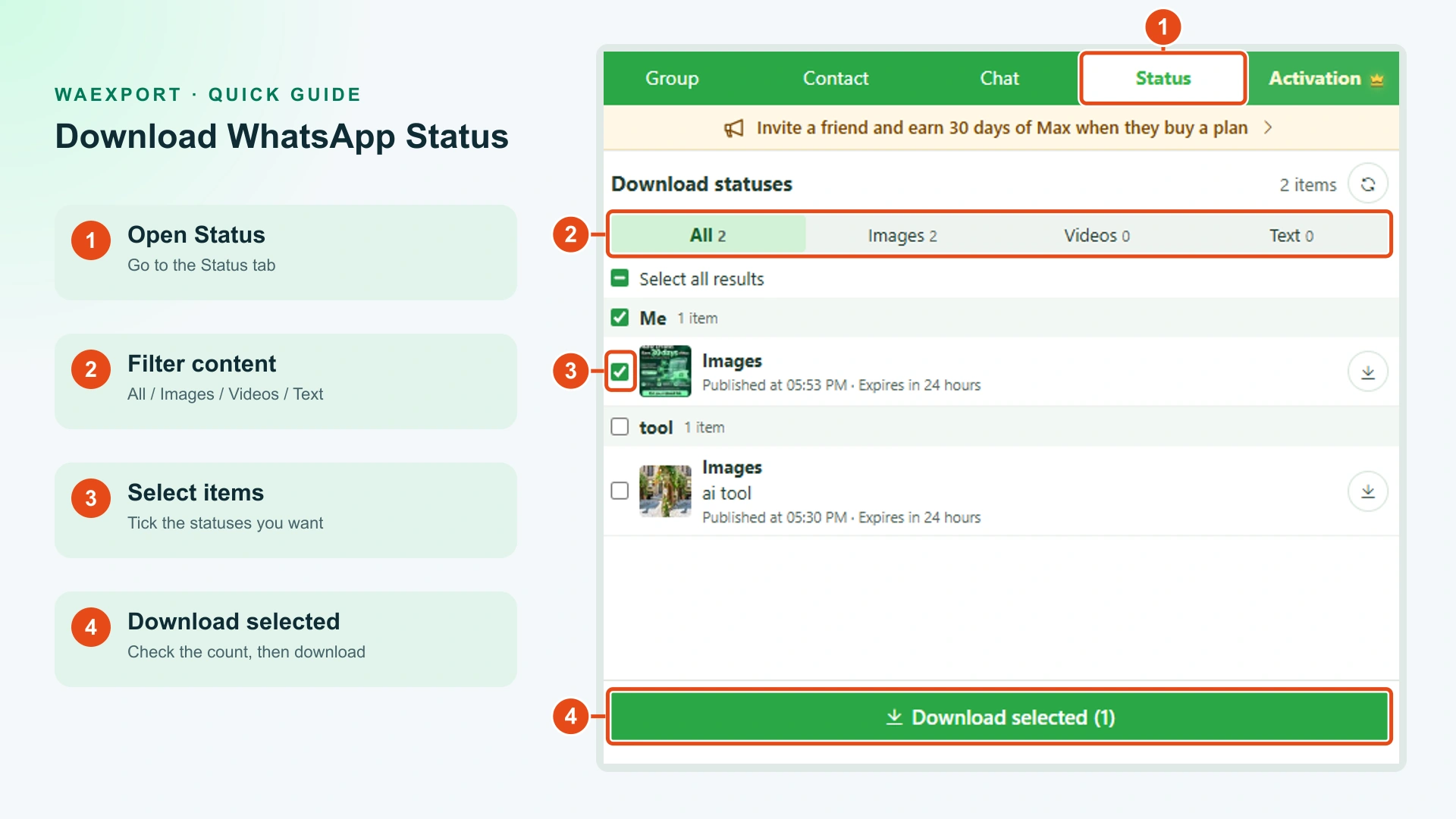
1. Open Status
Sign in to WhatsApp Web on your computer, open WAExport and click Status at the top. You will see the Download statuses page.
If the tab is missing, check that the extension has been updated to a version with Status downloads, then reopen WhatsApp Web and WAExport.
2. Filter the content
Keep All to browse everything in the list. Choose Images for photos and posters, Videos for video content, or Text for text statuses.
In the screenshot, All 2, Images 2, Videos 0 and Text 0 mean that this particular list contains two images and no videos or text statuses.
3. Select what you want to save
Tick the checkbox beside each status you need. The first image is selected in the example; the second is not.
Select additional items for a batch download, or use Select all results for the current filtered results. Check the number in the bottom button before downloading.
4. Click Download selected
Click the green Download selected (count) button. In this example, (1) means one status is selected for this download.
To save just one item directly, you can also click its round download icon on the right. Find the file in your browser's downloads and check that it opens correctly.
- Check the content type and selected items.
- Confirm the count in Download selected.
- Find and open the downloaded files.
Useful ways to use Status downloads
- Back up your own posts: Keep desktop copies of your posters, photos and videos.
- Organize permitted material: Collect assets a partner has agreed you can use.
- Save several items together: Filter first, then select the content you need.
Pay attention to the expiry information in the list and save material you need while it is available. Download only content you are entitled to use, and obtain permission before reposting someone else's work or using it commercially.
Frequently asked questions
Does this only work for images?
No. WAExport provides filters and downloads for image, video and text statuses. This screenshot is an image example; available content depends on your account's current status list.
Can I download several statuses at once?
Yes. Select several items and click Download selected. If you select just one, the button shows (1) as in the screenshot.
Why is a status missing?
Check that WhatsApp Web is signed in to the right account, switch to All to remove the type filter, and try the refresh button at the top right of the list. The feature downloads available statuses your account can access; it does not recover expired or inaccessible posts.
Where do I get started?
Install the extension from the WAExport homepage, then open Status in WhatsApp Web. See the setup guide for installation and basic instructions.
🎁 Get 30 days of Max. Give a friend 10% off.
Share a useful tool and enjoy the rewards together! When a friend makes their first qualifying plan purchase through your referral link, you get 30 days of Max Plan free, and they get 10% off. 🤝
👉 Invite a friend and earn 30 days of Max → · Full details and terms on the campaign page.
How to Download WhatsApp Group Numbers in 2026
Learn how to download WhatsApp group numbers from WhatsApp Web to Excel, CSV, or VCF. A practical guide for exporting group member contacts safely with WAExport.
How to Export WhatsApp Group Members and Organize a Multi-Group Contact List
Export WhatsApp group members, preserve group sources, and build a unique contact list in Excel. Learn which duplicates to keep and how to check your counts.